Opening Hours


Most laptops are replaced because they feel slow or run hot, not because they have stopped working. A little routine care keeps them running well for years longer.
6 minute read | Updated 7 November 2026 | Lead image: Zoshua Colah / Unsplash
In short
- Heat is the biggest enemy of a laptop: keep the vents clear and use it on a hard surface.
- Batteries last longer if they are not kept at 100% on the charger all day.
- Keep at least 15 to 20% of the drive free so the system has room to work.
- An SSD upgrade and a professional clean can give an older laptop a second life.
Keep it cool
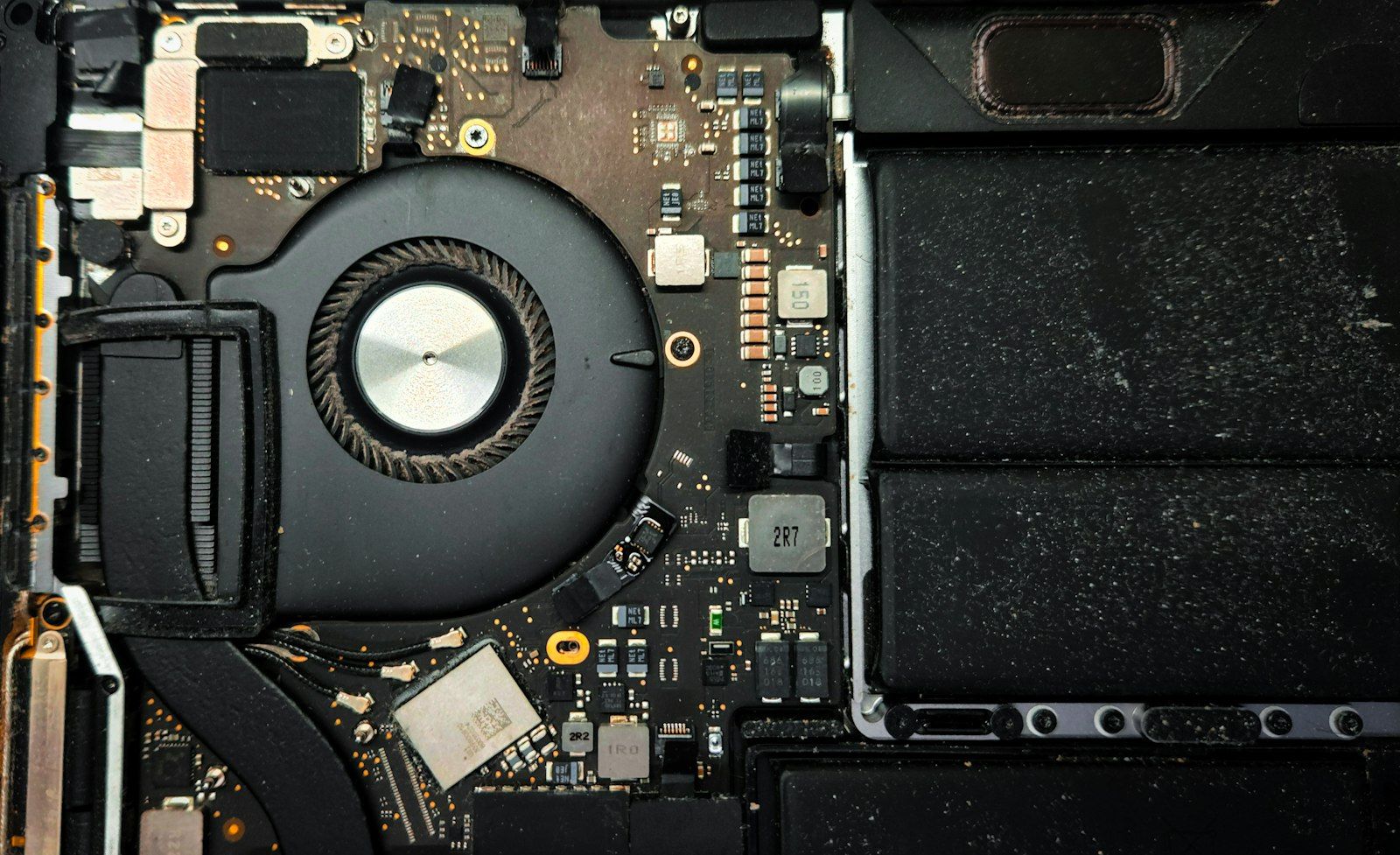
Laptops pack powerful parts into a small space, and they rely on a fan and narrow vents to stay cool. Dust builds up inside over time, and using a laptop on a bed, couch or lap blocks the air flow.
When a laptop runs hot, it slows itself down to protect the processor, and the heat wears out the battery and other components faster. Use it on a desk or tray, keep the vents clear, and if the fan is loud or the base feels very hot, it is probably time for a clean inside. Our clean and tune-up includes this.
Look after the battery
Lithium batteries age fastest when they sit at full charge and get hot. Many laptops now have a battery care setting that stops charging at about 80%. Turn it on if you mostly use the laptop plugged in.
If the battery drains in an hour or the case has started to bulge, stop using it and get it checked. A swollen battery is a safety issue.
Give it room to breathe on the drive
A drive that is nearly full slows everything down, because the system has nowhere to store temporary files and updates. Aim to keep at least 15 to 20% free.
- Move old photos and videos to an external drive or cloud storage
- Empty the Downloads folder and the Recycle Bin
- Uninstall programs you no longer use
- Turn off apps that launch at startup but are rarely used
Update, protect and back up
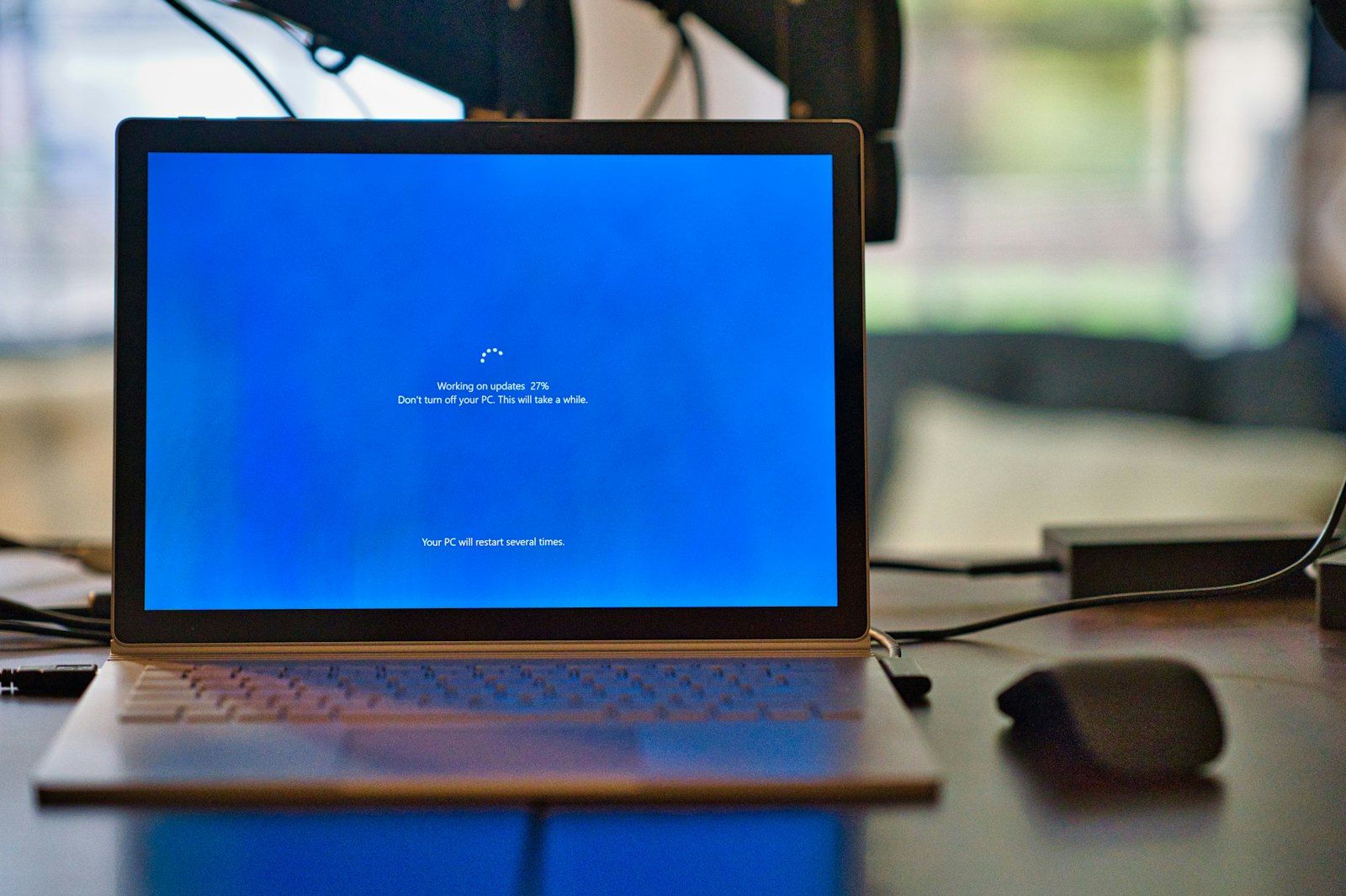
Updates fix security holes and bugs, so let Windows or macOS install them. Keep reputable security software running, and back up your files regularly to an external drive or the cloud.
If your laptop is still on Windows 10, read our guide to Windows 10 security updates until October 2027 before deciding what to do next.
Upgrade instead of replacing
If your laptop still has a spinning hard drive, replacing it with a solid-state drive is the single biggest speed boost you can buy. Adding memory helps too, where the laptop allows it. Our computer upgrades page explains the options.
How Mobile Computer Geeks can help
Our technicians can clean the inside of your laptop, check the battery and drive health, install an SSD or memory, and set up backups, at your home or office anywhere across Brisbane, Logan, Ipswich, Moreton Bay and the Redlands. See laptop repairs and PC cleaning and tune-ups.
Call 07 3063 7616 or book online. Bookings run Monday to Friday 9am to 9pm and Saturday 9am to 8pm, and our first hour is $160 inc GST with no call-out fee. See the full price list.
Frequently asked questions
How often should a laptop be cleaned inside?
Every one to two years for most homes, more often in dusty spaces or if you have pets. A loud fan or a hot base is a good sign it is due.
Should I leave my laptop plugged in all the time?
It is fine if your laptop has a battery care setting that limits charging to about 80%. Without it, unplug now and then and avoid keeping it hot and fully charged all day.
Is an SSD upgrade worth it?
For a laptop with a spinning hard drive, yes. Start-up and program load times usually drop dramatically.