Opening Hours


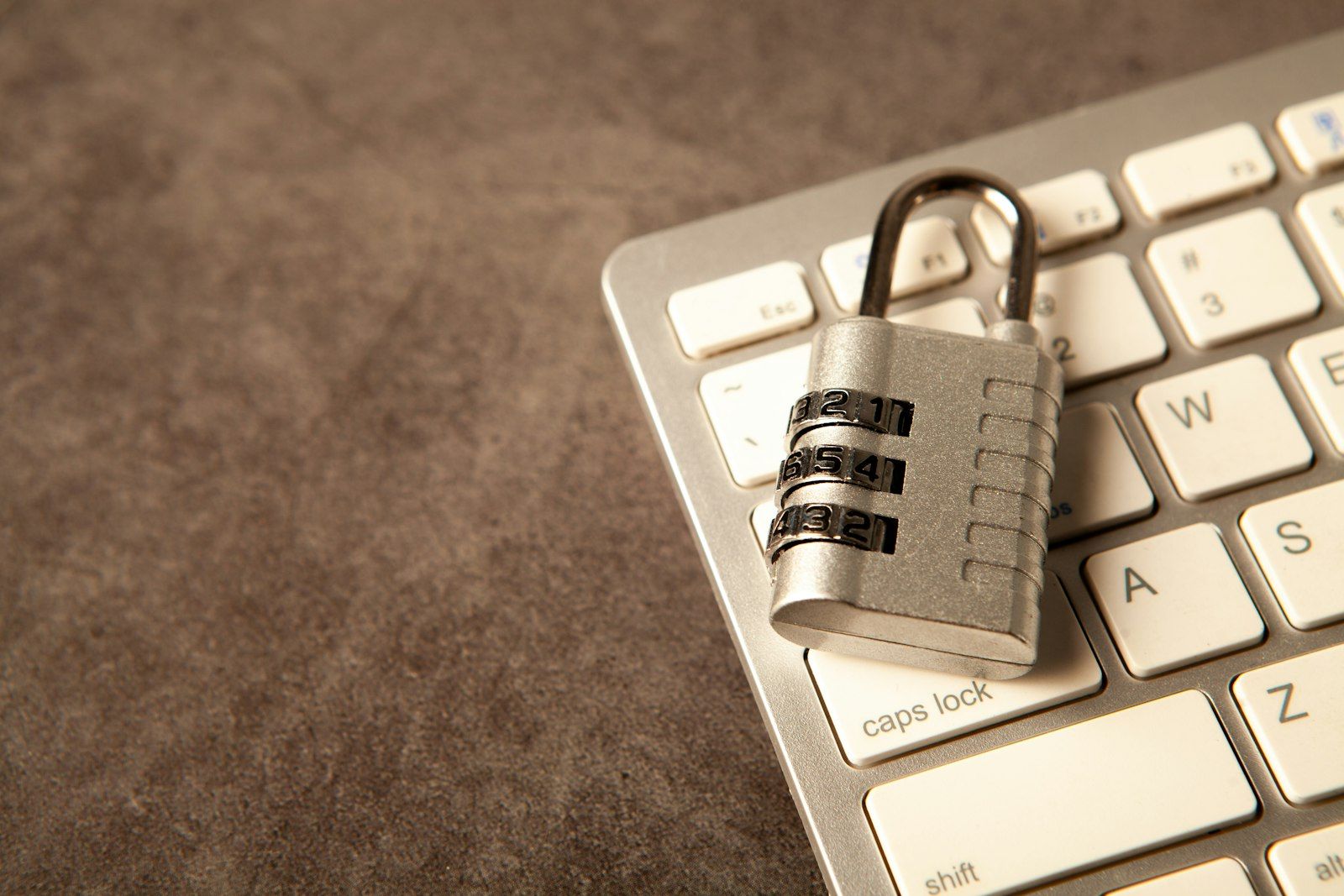
Most websites and apps collect data about what you do, where you are and what you click. A few minutes in the right settings menus puts you back in control of how much they see.
5 minute read | Updated 7 November 2026 | Lead image: Sasun Bughdaryan / Unsplash
In short
- Choose “reject all” or “necessary only” on cookie banners where offered.
- Use your browser’s privacy settings to block third-party cookies.
- Review Google and Facebook activity and ad settings once a year.
- Check which phone apps can use your location, microphone and camera.
Cookie banners
Australian and overseas websites often show a cookie banner. Where there is a choice, select reject all or necessary only. It rarely affects how the site works and reduces tracking across sites.
Your browser
Chrome, Edge, Firefox and Safari all have privacy settings. Block third-party cookies, turn on tracking prevention where available, and clear your browsing data now and then. Keep the browser updated, since updates fix security holes.

Google and Facebook
- In your Google Account, review Data and privacy, including Web and App Activity, Location History and YouTube history
- Turn off ad personalisation if you prefer
- In Facebook, use Privacy Checkup to control who sees your posts and profile details
- Remove apps and games you no longer use from your Facebook and Google accounts
Your phone
On iPhone and Android, review which apps can access your location, contacts, photos, microphone and camera. Set location to “while using the app” instead of “always” for most apps.
How Mobile Computer Geeks can help
If the settings menus feel overwhelming, we can go through your computer, phone and accounts with you and set them up properly. We do this at homes across Brisbane, Logan, Ipswich, Moreton Bay and the Redlands as part of an online security check or a one-on-one tech lesson.
Call 07 3063 7616 or book online. Bookings run Monday to Friday 9am to 9pm and Saturday 9am to 8pm, and our first hour is $160 inc GST with no call-out fee. See the full price list.
Frequently asked questions
Is it safe to accept cookies?
Necessary cookies are fine. Rejecting optional ones reduces tracking without breaking most sites.
Does private browsing stop tracking?
It stops your history being saved on your device, but websites and your internet provider can still see activity.